Photograph CRTs.Reduce refresh artifacts.
Match the shutter to your display's refresh rate. Fine-tune it before you shoot.
iPhone. Free. No accounts, no ads, no tracking.
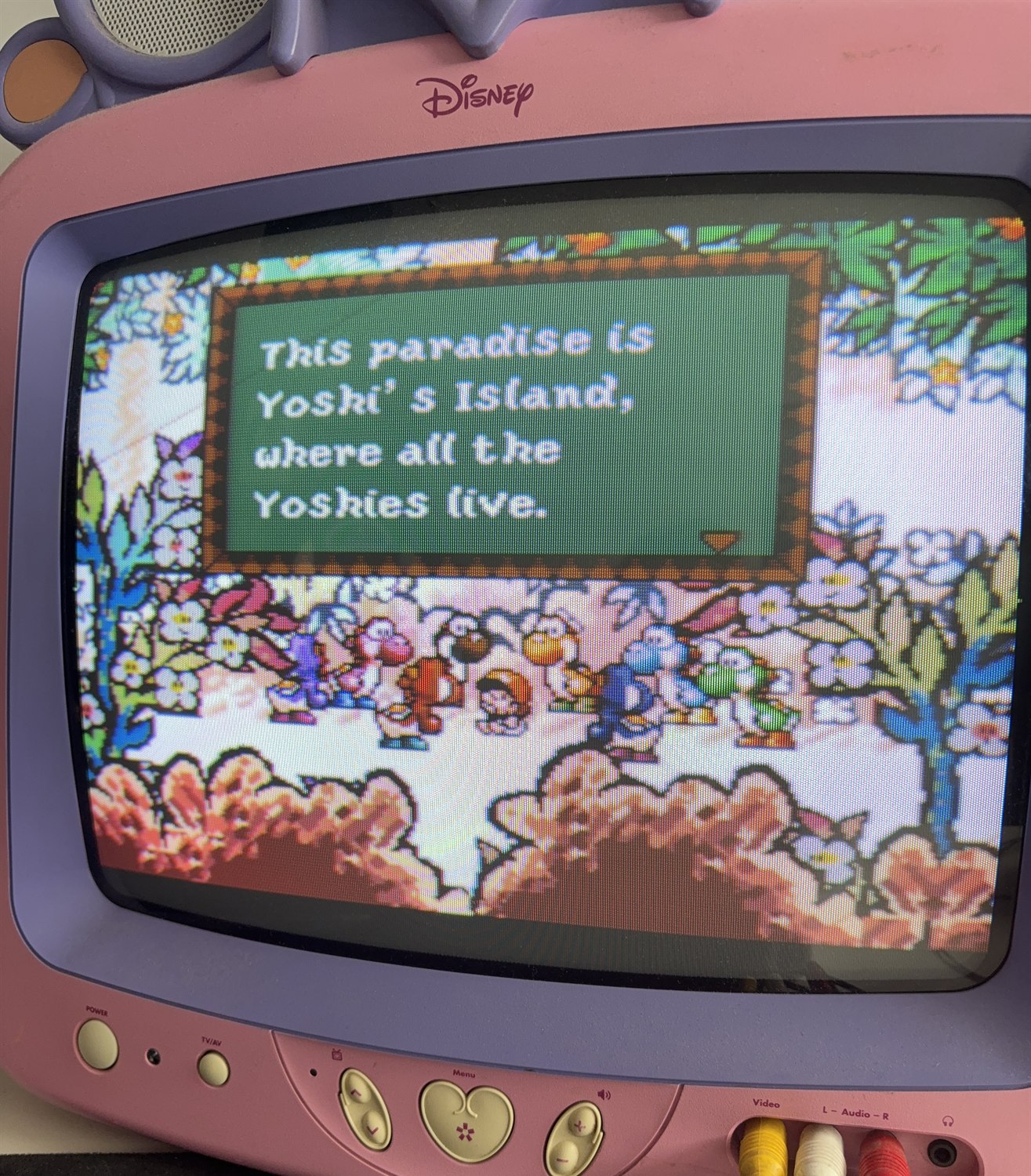
How it works
Point. Match. Shoot.
-
Step 1
Match
Choose 50 Hz or 60 Hz.
-
Step 2
Fine-tune
Adjust while watching the live CRT preview.
-
Step 3
Shoot
Review the result, then save or retake.
Frequency
Two presets. One tap.
50 Hz and 60 Hz cover the displays you are most likely to be standing in front of. One tap applies the matching exposure duration.
The app uses the closest duration the camera actually supports, and waits until that value is confirmed before it lets you shoot. There is no manual shutter dial to operate.
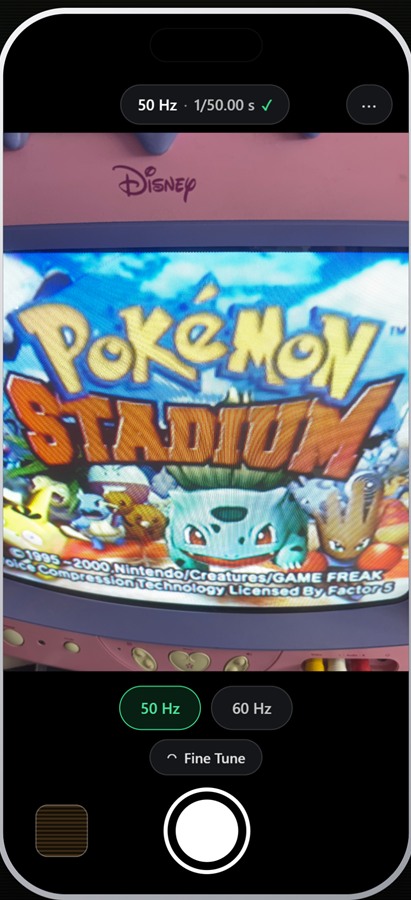
Applied shutter
See the real shutter.
Most cameras hide this. CRT Camera shows the shutter duration the hardware actually applied, not just the one that was requested — the two are not always identical.
- Confirmed The requested duration was applied.
- Approximate The nearest supported duration was used.
- Adjusted You changed the preset with Fine Tune.
Each state is spelled out in words, never signalled by colour alone.
Fine Tune
Adjust until the band stops or disappears. A slider, minus and plus buttons, and a reset back to the nominal value — with the applied shutter shown underneath as you move.
A modified preset stays 50 Hz or 60 Hz and is labelled Adjusted. It does not turn into a generic manual mode.
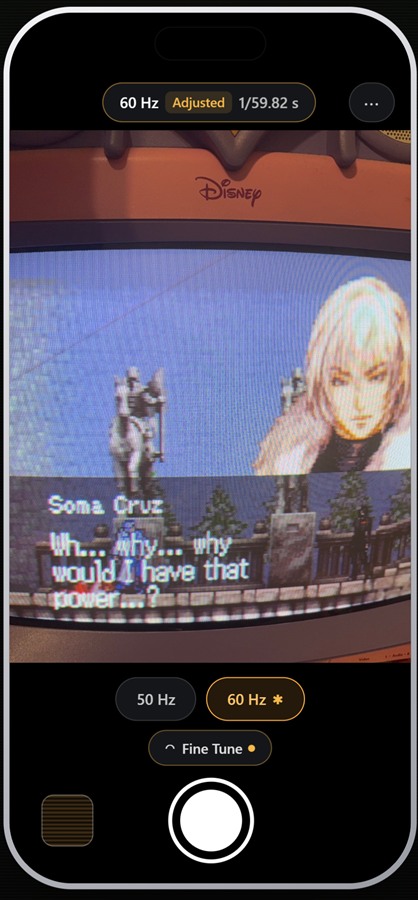
Orientation
Shoot in landscape.
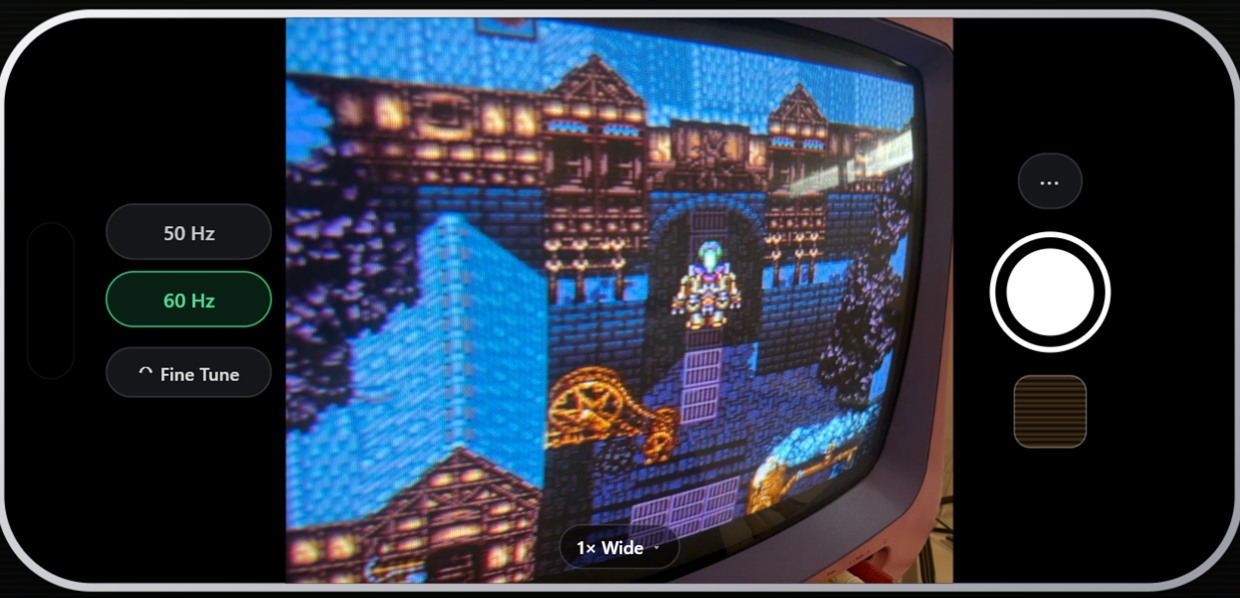
Most CRTs are wider than they are tall. Turn the phone and the interface follows: the presets and Fine Tune move under your left thumb, capture and review under your right, and the whole CRT frame stays visible in the preview.
Portrait and landscape captures are saved in the orientation you shot them.
Privacy
Your photos stay yours.
- On-device processing — nothing is sent anywhere for analysis.
- No accounts. No ads. No tracking.
- No watermarks and no capture limits.
- HEIC or JPEG, saved locally to your Photo library.
Scope
What it does today.
- Capture
- Still photography
- Formats
- HEIC and JPEG
- Storage
- Your Photo library, on device
- RAW and Apple ProRAW
- Not supported
- Video
- Not supported
- Devices
- iPhone, first release
Support
Questions and help.
Short answers to the things people ask most. If yours is not here, email us — a person reads it.
What does CRT Camera do?
It is an iPhone camera built for photographing CRT televisions and monitors. Because the display refreshes while the camera exposes, photos of a CRT usually show a dark band across the screen. CRT Camera matches the shutter duration to the display's refresh rate to reduce those refresh artifacts. It reduces them — it does not promise to remove them completely.
Should I choose 50 Hz or 60 Hz?
It depends on the display and the signal feeding it. As a rule of thumb, PAL-region equipment usually runs at 50 Hz and NTSC equipment at 60 Hz — but the fastest way to find out is to look. Tap one preset, watch the live preview, and pick the one where the band is weakest. Then use Fine Tune to settle it.
What does Fine Tune do?
It lets you nudge the exposure while looking at the live preview, so you can adjust until the band stops moving or disappears. You get a slider, minus and plus buttons, and a reset back to the nominal value. The shutter duration the camera applied is shown as a secondary value while you adjust.
What does “Adjusted” mean?
It means you have changed the preset with Fine Tune. The preset keeps its identity — it is still 50 Hz or 60 Hz, now labelled Adjusted. It does not become a generic manual mode, and it stays that way until you reset it.
Why is the applied shutter slightly different from what I chose?
Camera hardware only supports a limited set of exposure durations. The app requests the duration for the frequency you picked, then applies the closest value the camera can actually deliver, and waits for that value to be confirmed before enabling capture. When the nearest supported value has to be used, you can still shoot — the status simply tells you so instead of hiding it.
Where are my photographs saved?
In your own Photo library on the device, as HEIC or JPEG. They are not copied anywhere else. There is no cloud storage and no upload.
Why does the app need Camera permission?
Camera access is what makes the live preview and the capture possible — matching the shutter to a CRT requires controlling the camera directly. It is used for nothing else.
Why does it request Photos permission only when I save?
Because until you save something, there is nothing to write. The first time you tap Save, iOS asks for add-only access to your Photo library. Add-only means the app can put a photo in — it cannot read, browse or search anything already there.
What should I do if I denied a permission?
Open the iOS Settings app and go to Privacy & Security → Camera, then turn on CRT Camera. For saving, go to Privacy & Security → Photos → CRT Camera and choose Add Photos Only. You can also find both switches together under Settings → CRT Camera.
Does the app upload or analyse my photographs?
No. All image processing happens on the device. Your photographs and the scenes you point the camera at do not leave the iPhone. There is no server that receives or processes images, no advertising SDK and no third-party analytics SDK. See the privacy policy for the full detail.
Does it support RAW?
No. This release captures HEIC and JPEG. RAW and Apple ProRAW are not included.
Does it record video?
No. CRT Camera takes one still photograph per capture. There is no video recording and no burst mode.
Which devices are supported?
iPhone, for this first release. The interface is in English. Some capabilities depend on the hardware in your particular iPhone — which physical lenses can be selected, and which exposure durations the camera supports.
How can I report a problem?
Email askjato@gmail.com. It helps a lot if you include your iPhone model, your iOS version, the app version, the preset you were using, and what you saw on screen.